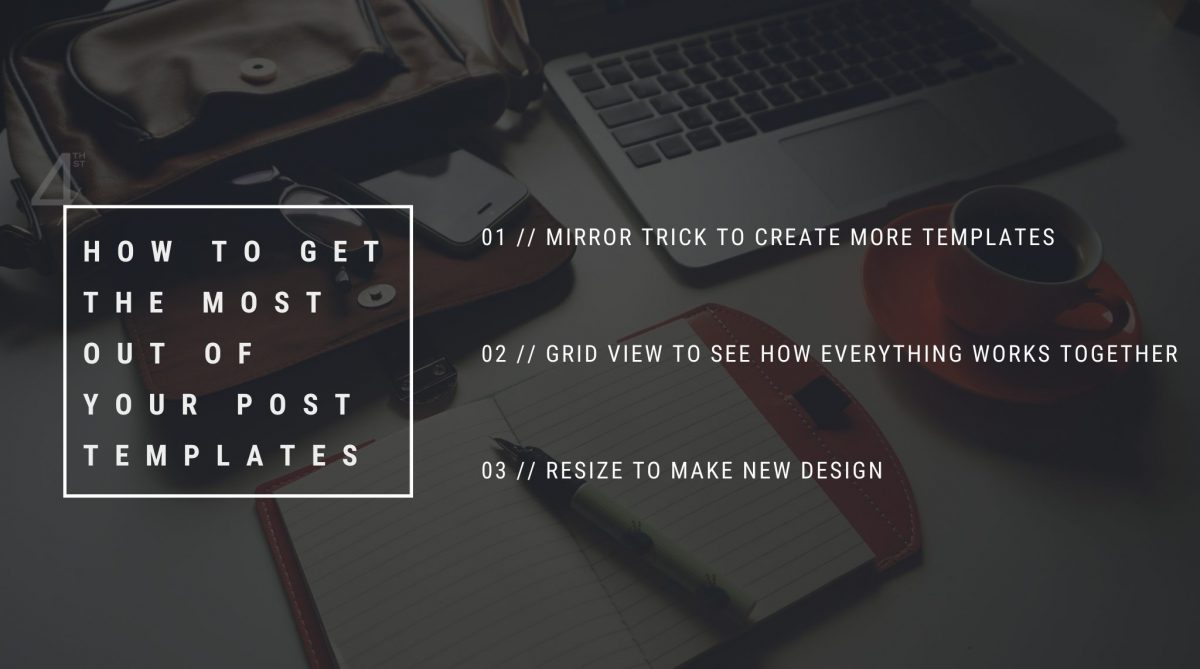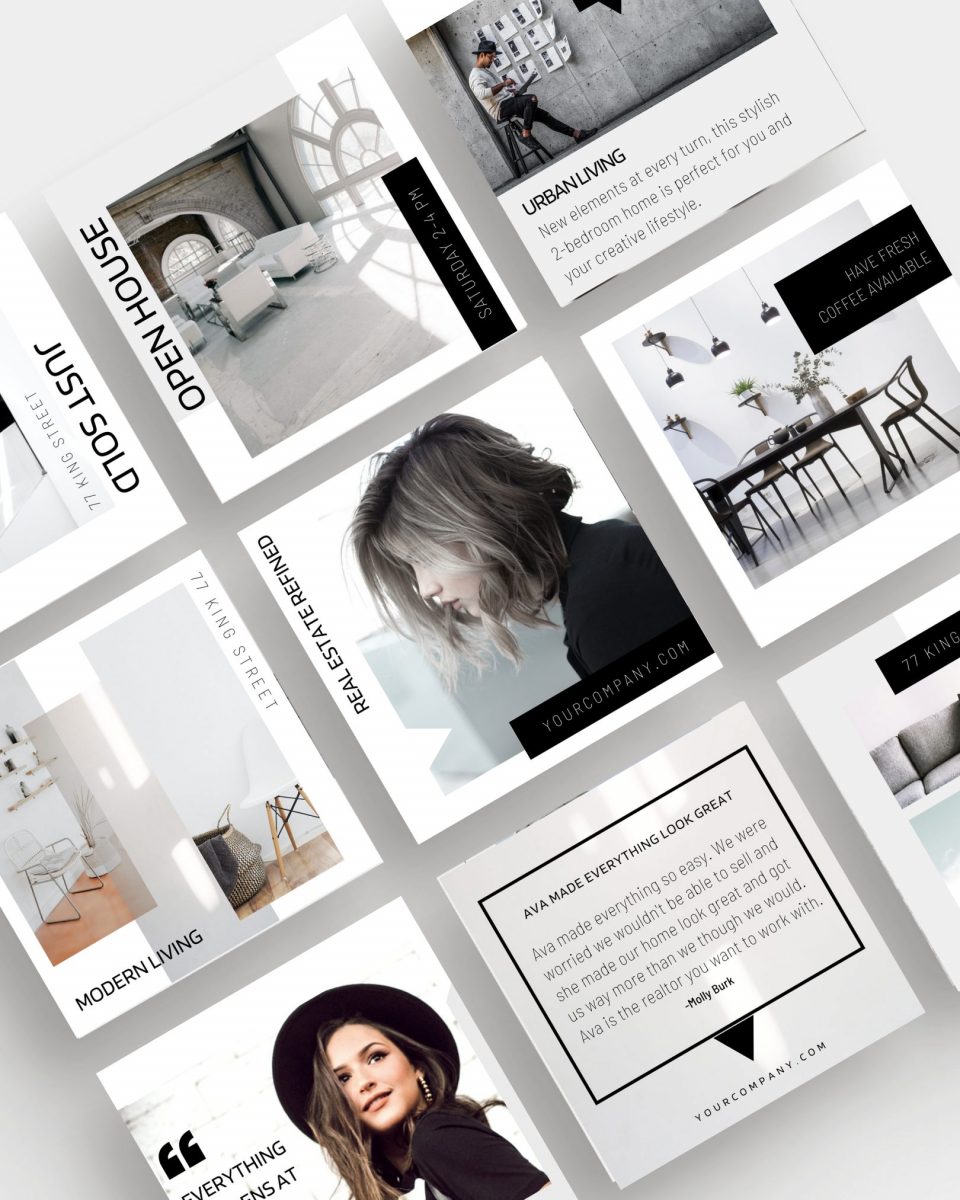


Who doesn’t love a little “best bang for your buck” post? I don’t know about you, but I am ALWAYS in the mood to learn how to get the most out of something I just spent my hard-earned dolla dolla bills on. So without further ado here’s the rundown on how you can buy Fourth Street templates ONCE and use them over and over again in different ways…. Ready? I know I am!
The Mirror Trick
Step One: In your post template, choose a layout you love. Any layout will do!
Step Two: Hit the duplicate page button. It looks like this:
Step Three: Meet your new bestie, the Mirror Trick. Take every element of the template and move it to the opposite side. Tada! You’ve just created a brand-new template in less than 10 seconds!
Grid View
Once you’ve mastered the Mirror Trick, check out grid view. This handy view lets you see all the artwork in your design AND how everything works together. (Like, how do the colours and photos work together?) This will help keep you on brand and give you beyond great results with your template.
Resizing
We saved the best for last! That’s because the resizing tool will breathe all kinds of new life into your templates. It lets you resize your design to – wait for it… – any size you want! Which means you can create feature sheets, postcards, and even Stories from your *one* post template. (It’s like magic!) Here’s how:
Step One: With your post template open, head to the resize tool and select the size you want to resize to. (That sounds kinda complicated, but I swear Canva makes it easy with predefined sizes. And you can always add your own custom dimensions.)
Step Two: Adjust any images or elements so they reflect your new template. (We’ve used a feature sheet as an example here!)
Note: The resize tool is only available in Pro accounts. If you have the free version of Canva, watch our video above for the super sneaky (and still easy!) workaround.
Et voila! Multi-purposing done!